Excel Export and Import
This guide explains how to export translations from Poedit to Excel for editing, and how to import them back into Poedit. This workflow is designed for collaboration — for example, when translations need to be reviewed or edited by someone who doesn’t use Poedit but is comfortable working in Excel.
| This guide is for | This guide is not for |
|---|---|
| Exporting translations to Excel for review or editing | Creating new source strings |
| Working with collaborators who don’t use Poedit | Defining keys, context, or plural logic |
| Importing translation changes back into Poedit | Modifying translation file structure |
Exporting a translation to Excel
Section titled “Exporting a translation to Excel”You can export an existing translation file from Poedit to an Excel spreadsheet (.xlsx). Each row in the spreadsheet corresponds to an existing item in the translation file.
The exported file includes:
- Source text
- Translation
Additionally, if they are used in the translation file, the export also includes:
- Context
- Symbolic IDs
- Notes
- Open a translation file in Poedit.
- Go to File → Export to Excel…
- Choose a location and save the .xlsx file.
Working in Excel
Section titled “Working in Excel”You can open the exported file in your preferred app that supports .xlsx files, such as Microsoft Excel or Google Sheets. The spreadsheet contains the same translation entries as the Poedit file.
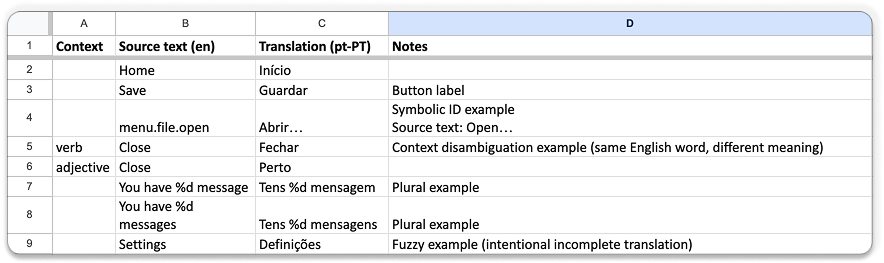
You can also download an example Excel file exported from Poedit.
Only the Translation column is intended to be edited in Excel. Any other changes — such as adding new rows, modifying source text, or editing the spreadsheet structure — are not applied on import.
To match Excel rows to existing strings, Poedit relies on the following fields:
- Source text
- Context
- Symbolic IDs
- Column structure
Changing any of these will prevent Poedit from finding the corresponding entries during import.
Importing translations back into Poedit
Section titled “Importing translations back into Poedit”Once translations are updated in Excel, you can import them back into Poedit.
During import, Poedit matches each row in the spreadsheet to an existing string using source text, context, or IDs. Translations for matching entries are updated; rows that don’t match any existing string are skipped.
Column-mapping window
Section titled “Column-mapping window”When importing, Poedit shows a column-mapping window where you confirm how spreadsheet columns correspond to translation fields. This step tells Poedit how to interpret the spreadsheet.
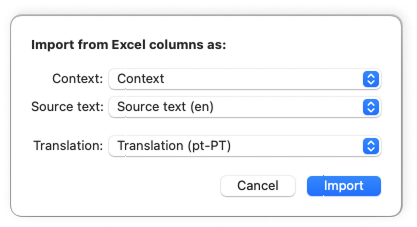
Poedit attempts to auto-detect the correct assignment, but this step is always shown so you can verify (or adjust) how the file will be interpreted. This is especially important when Excel files were modified externally or don’t follow Poedit’s original column naming.
- Go to File → Import from Excel…
- Confirm the column mapping.
- Click Import.
- Review the import summary and click OK.
Importing Excel files not exported from Poedit
Section titled “Importing Excel files not exported from Poedit”Poedit can also import Excel files that were not originally exported from Poedit, as long as the columns match existing strings. In this case, you’ll need to map the columns manually during import.
Troubleshooting
Section titled “Troubleshooting”Changes made in Excel don’t show up after import
Only changes to the Translation column are applied on import. Edits to source text, context, IDs, notes, or the spreadsheet structure are ignored.
Some rows were skipped during import
Poedit only updates strings that already exist in the translation file. Rows added in Excel for new source strings — even if they include translations — are skipped during import.